

Shared Galleries
Clients see the galleries shared with their account. A gallery can allow selection, comments, viewing only, advanced review, or final download.
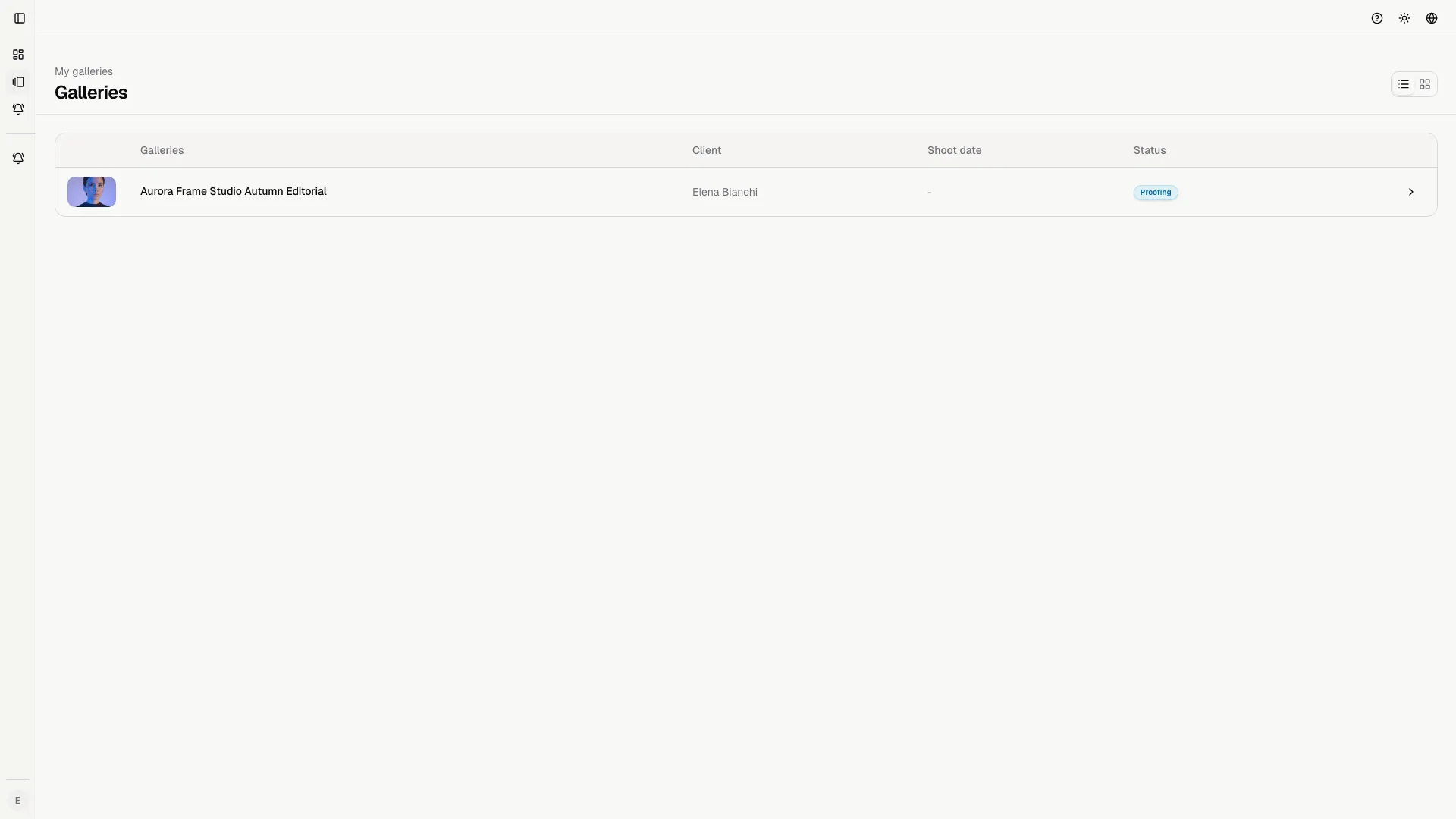
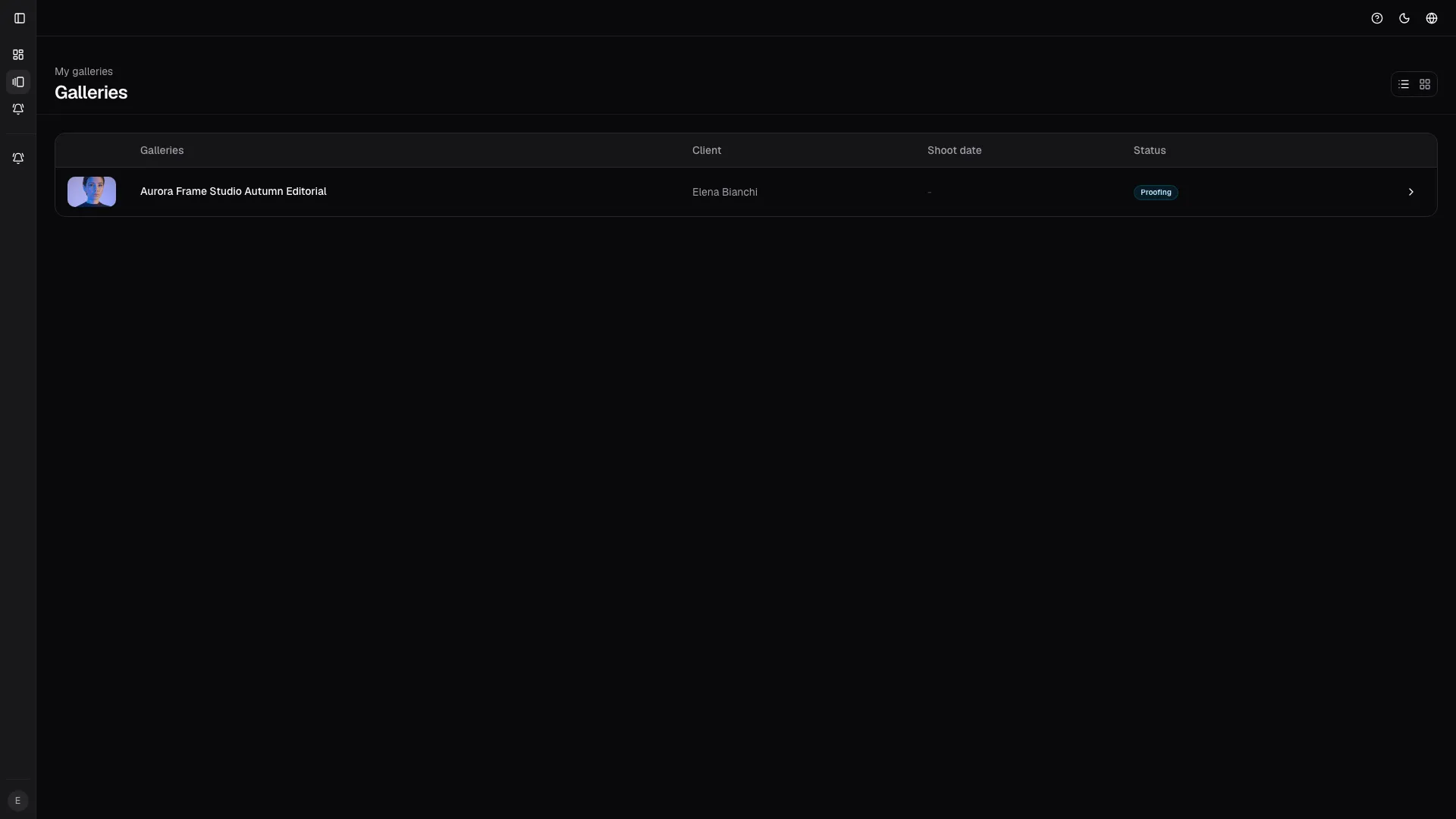
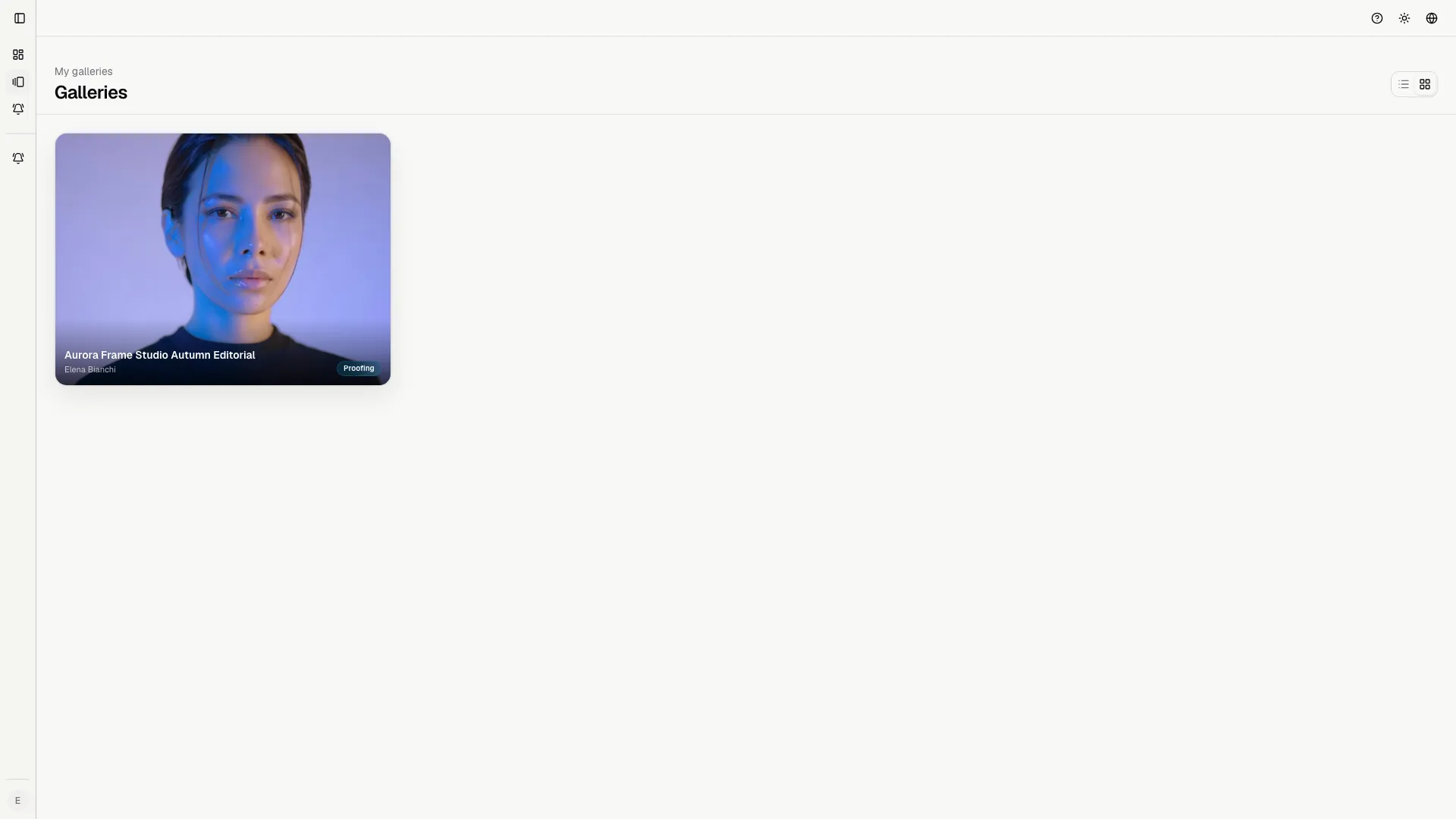
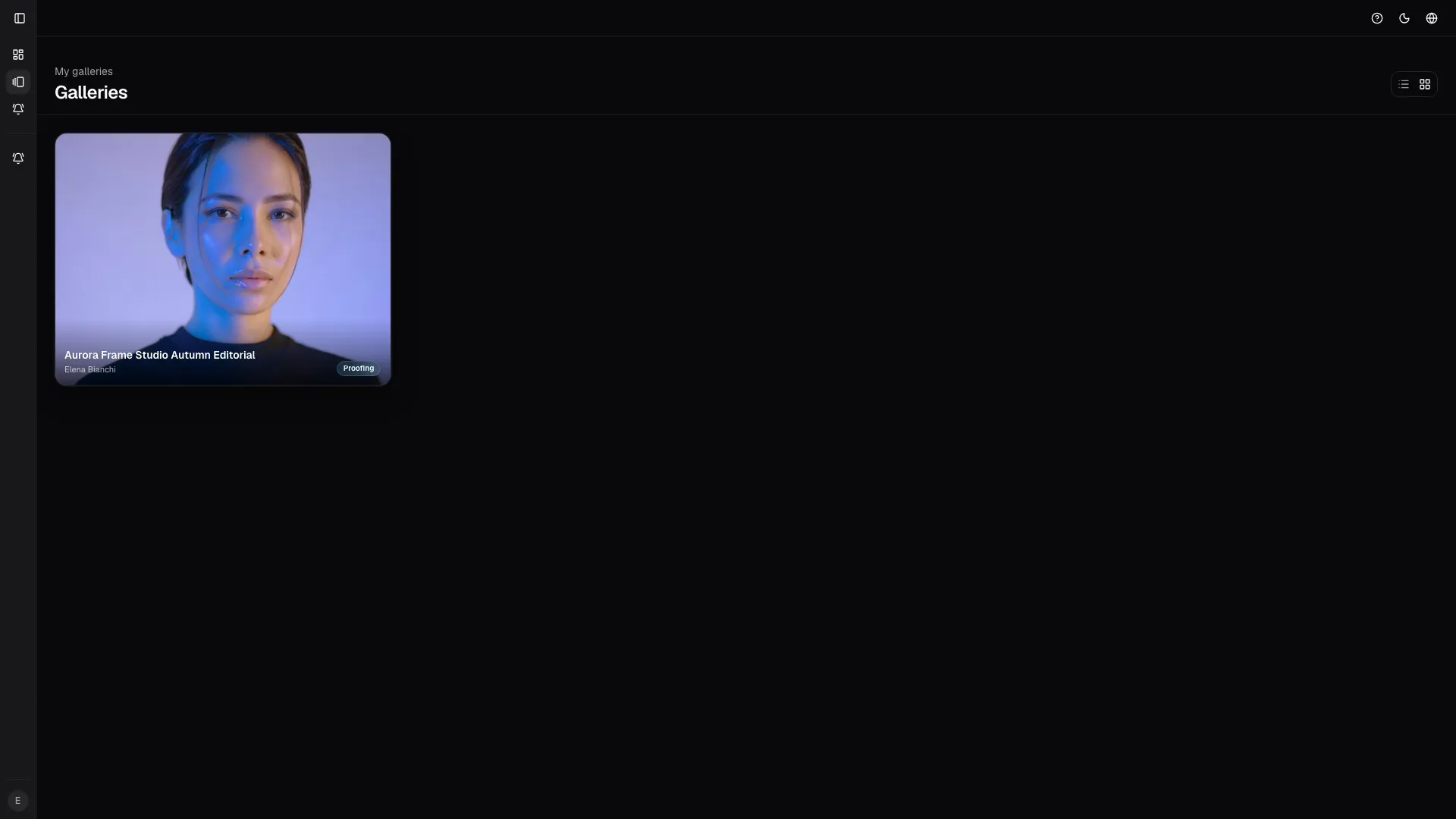
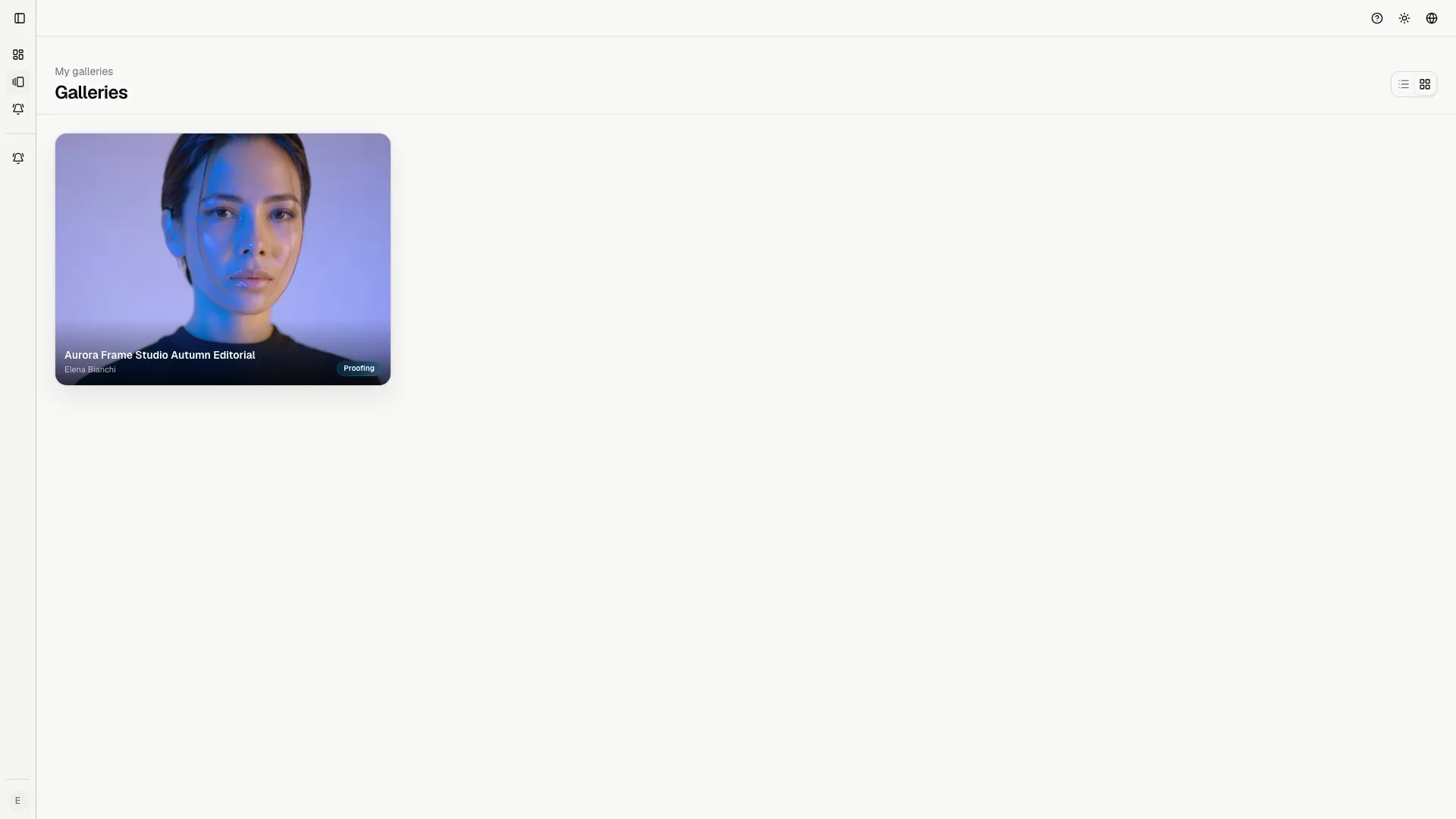
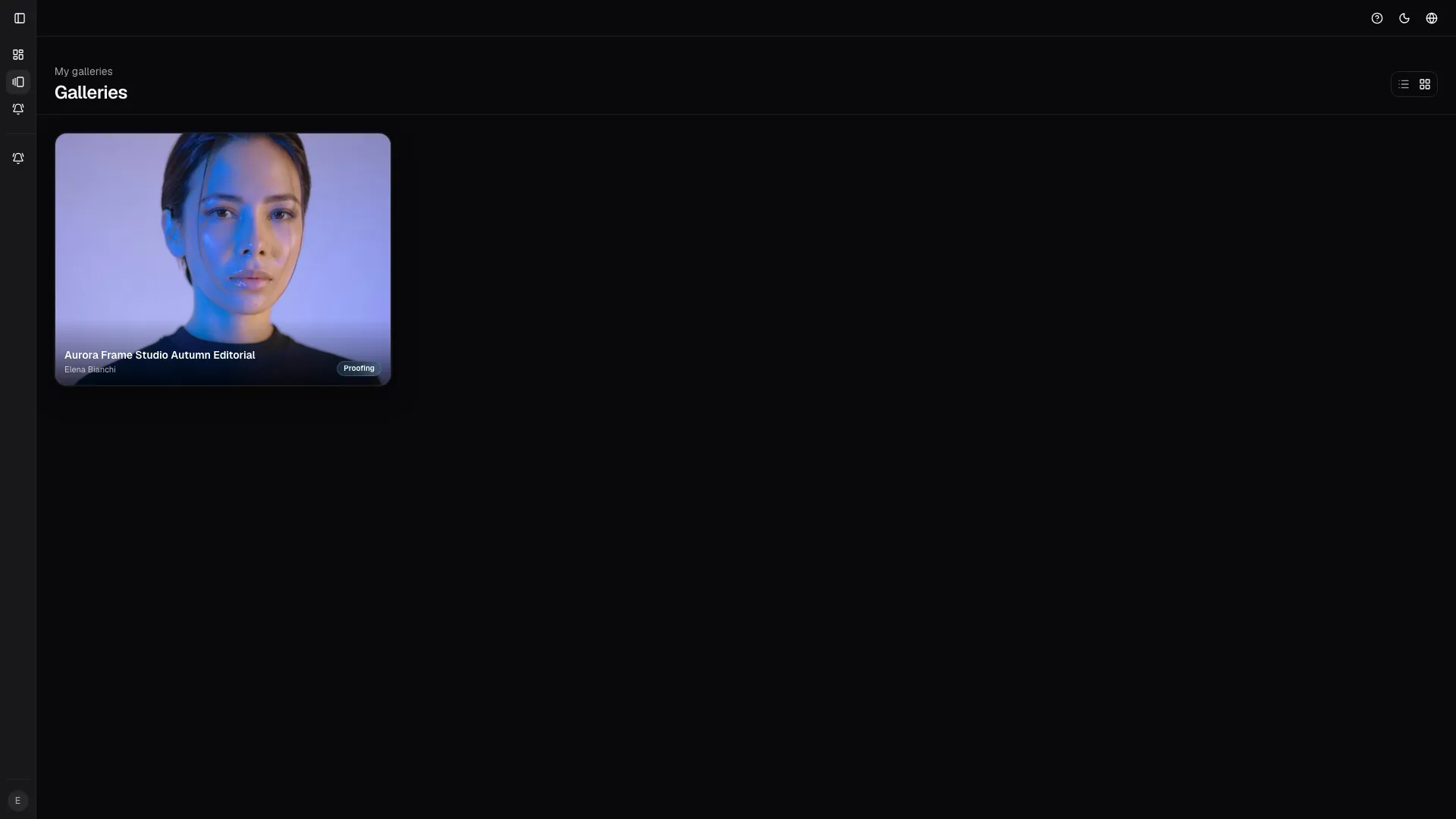
In the gallery list
Section titled “In the gallery list”Each card or row can show:
- gallery title;
- thumbnail;
- status;
- studio or client context;
- shoot date;
- deadline;
- the button that opens the gallery.
You can switch between grid and table layouts. Both layouts show the same status and deadline context, and the preference stays saved in the browser.
Inside a gallery
Section titled “Inside a gallery”Once you open a gallery, you can usually:
- read the welcome note and deadline;
- filter images when the studio has enabled filters;
- inspect image details in the lightbox;
- select images only when the gallery allows it;
- leave comments only when the studio has opened that channel;
- confirm the final set when the work is complete.
Visibility states
Section titled “Visibility states”| Status | What it means for the client |
|---|---|
| Proofing | You can review images, select, and comment according to the rules. |
| Locked | The review period is closed or the studio is working on the set. |
| Locked for download | Review is closed and the gallery is ready for the delivery phase. |
| Archived | The job is finished and remains as history. |
| Unavailable | The gallery is not published or you do not have access to it. |
If a gallery is missing
Section titled “If a gallery is missing”- Make sure you are using the invited email address.
- Accept the invitation that was sent to you.
- Refresh the page after the studio changes access rules.
- Ask the studio if the gallery has been published yet or if the deadline already passed.
Good client habits
Section titled “Good client habits”- Finish the selection before the deadline.
- Use comments for specific feedback instead of vague reactions.
- Do not confirm the set until you are sure it is final.
- Download the final delivery as soon as the studio publishes it.
- Ask the studio for clarification if any status looks unexpected.