

Account Access
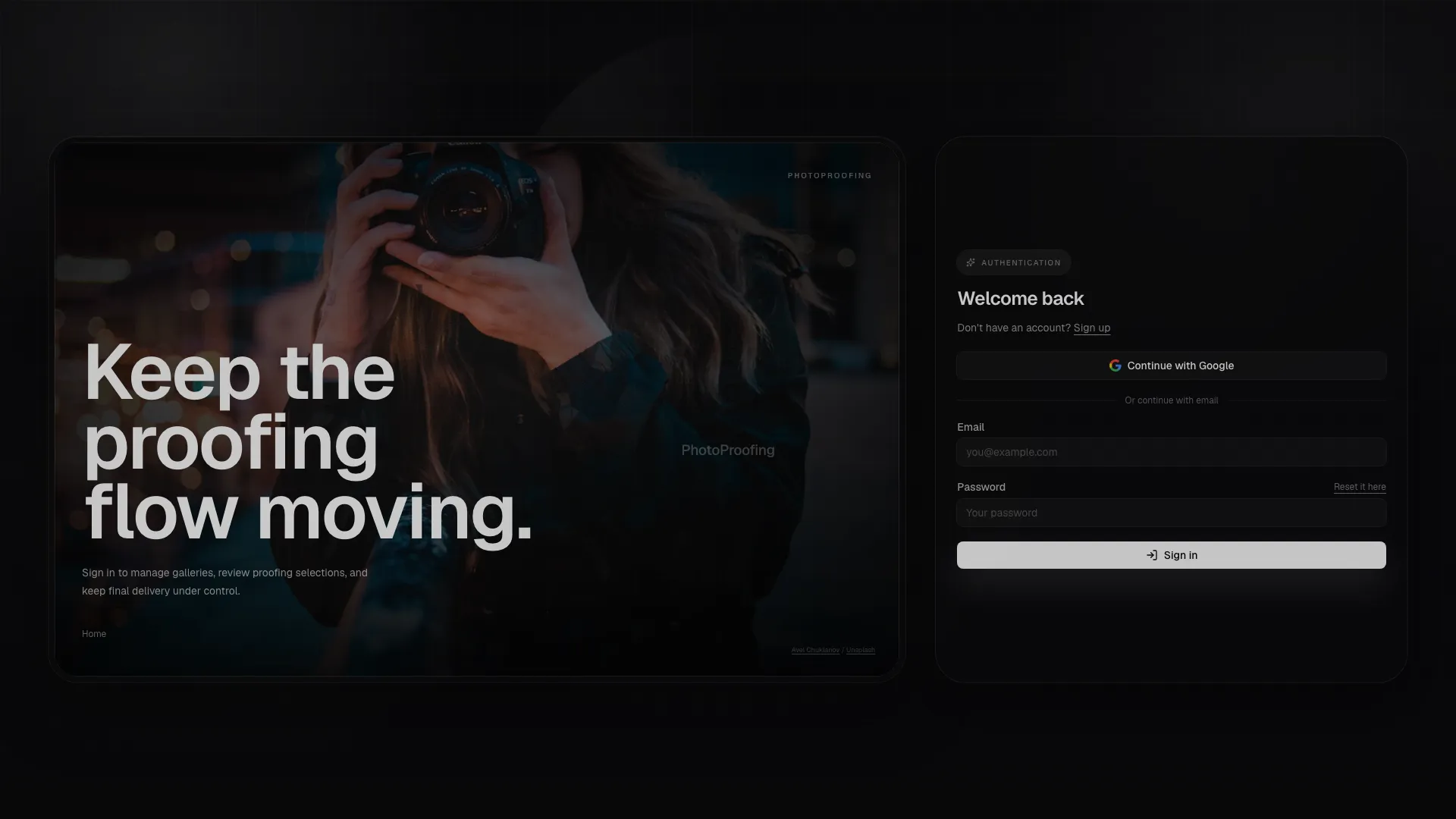
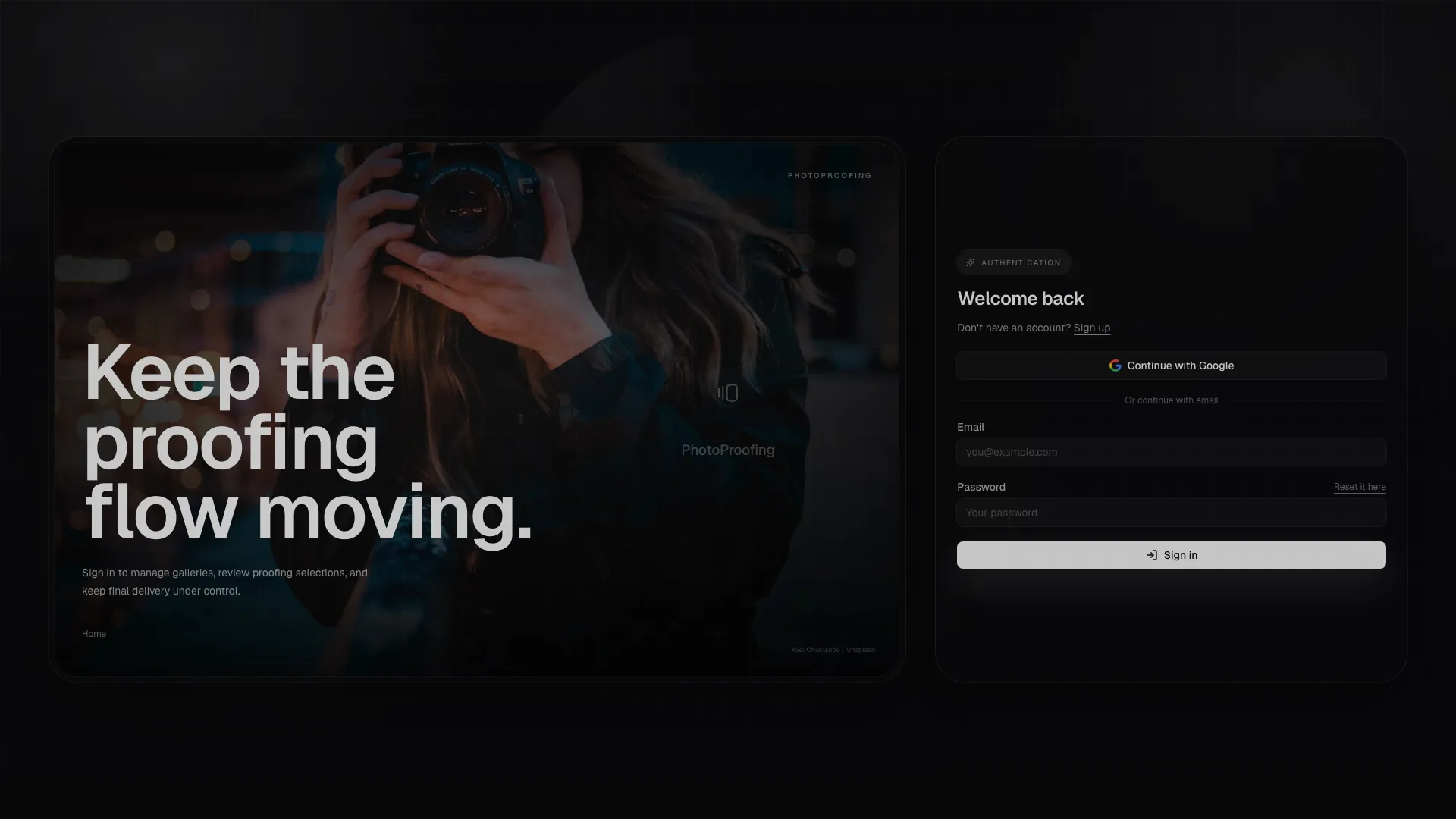
PhotoProofing access is invitation-based for most teams. A new user usually arrives through an invitation, then signs in once the account exists. Existing users can go straight to the login page and return to the same place they left from.
First session
Section titled “First session”- Open the invitation email or the login page.
- Use the email address that received the invitation.
- Accept the organization or gallery access.
- Choose your preferred language from the header.
- Pick your preferred theme or use the system setting.
- Continue to the dashboard after authentication completes.
Recovery and reset
Section titled “Recovery and reset”Use Forgot password on the login page when you cannot remember the password or when an old session expired. The reset link is single-use; request a new one if it expires or if you open it on the wrong account.
What each page does
Section titled “What each page does”| Page | What the user does |
|---|---|
/login | Sign in with email and password, preserve the redirect, and re-enter the app. |
/register | Create a public account when signup is enabled and the studio allows it. |
/forgot-password | Ask for a password reset link to be sent to the account email. |
/reset-password | Enter a new password with a one-use token and finish recovery. |
/accept-invitation/* | Accept the invitation, match the invited email, and land in the correct workspace. |
Common checks
Section titled “Common checks”- Use the email that received the invitation or reset message.
- Make sure the invitation has not been revoked or expired.
- If the redirect looks wrong, open the login page again and sign in manually.
- If the page asks for a theme or language change, pick the preference you want to keep for future visits.