

Dashboard
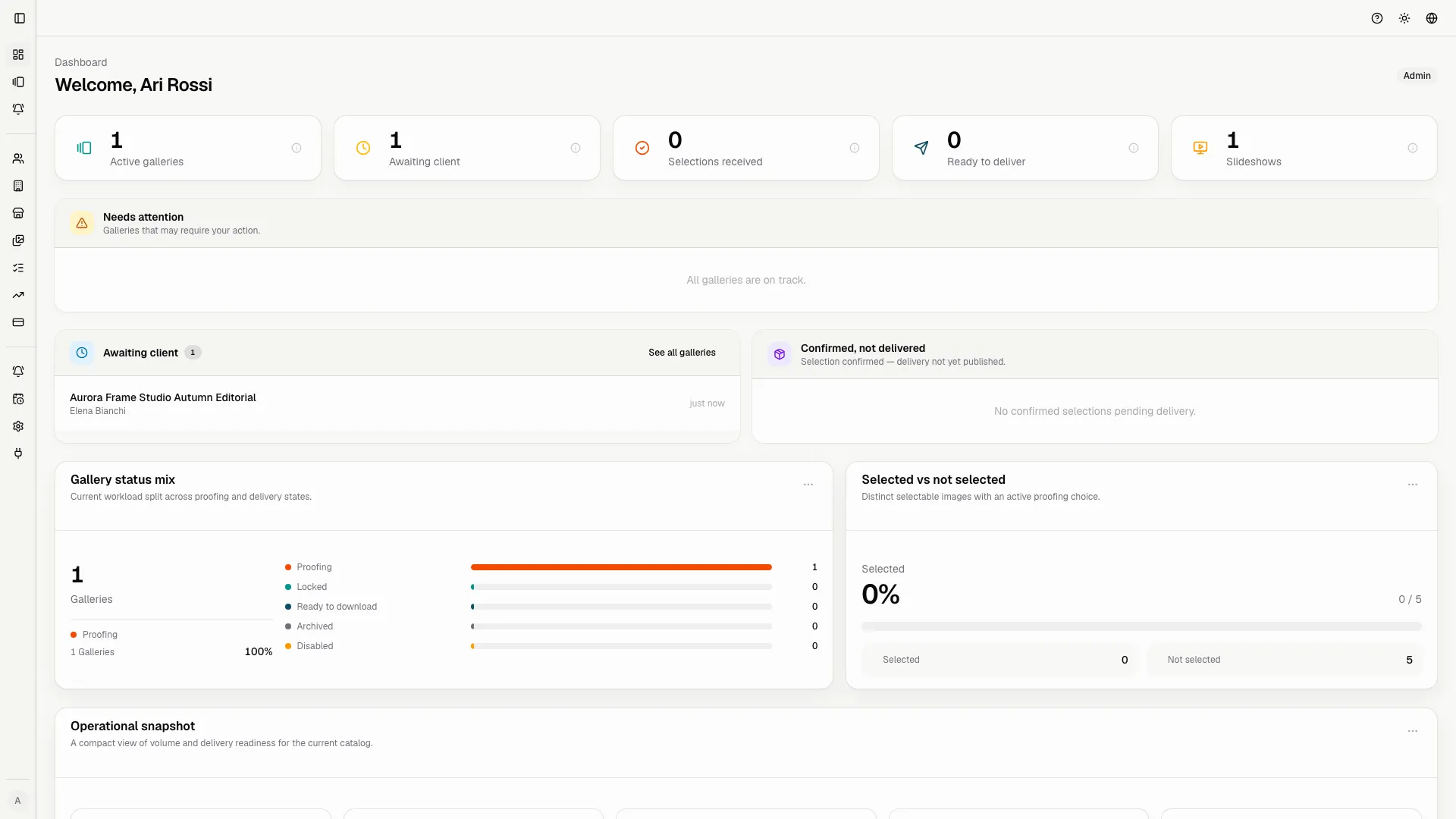
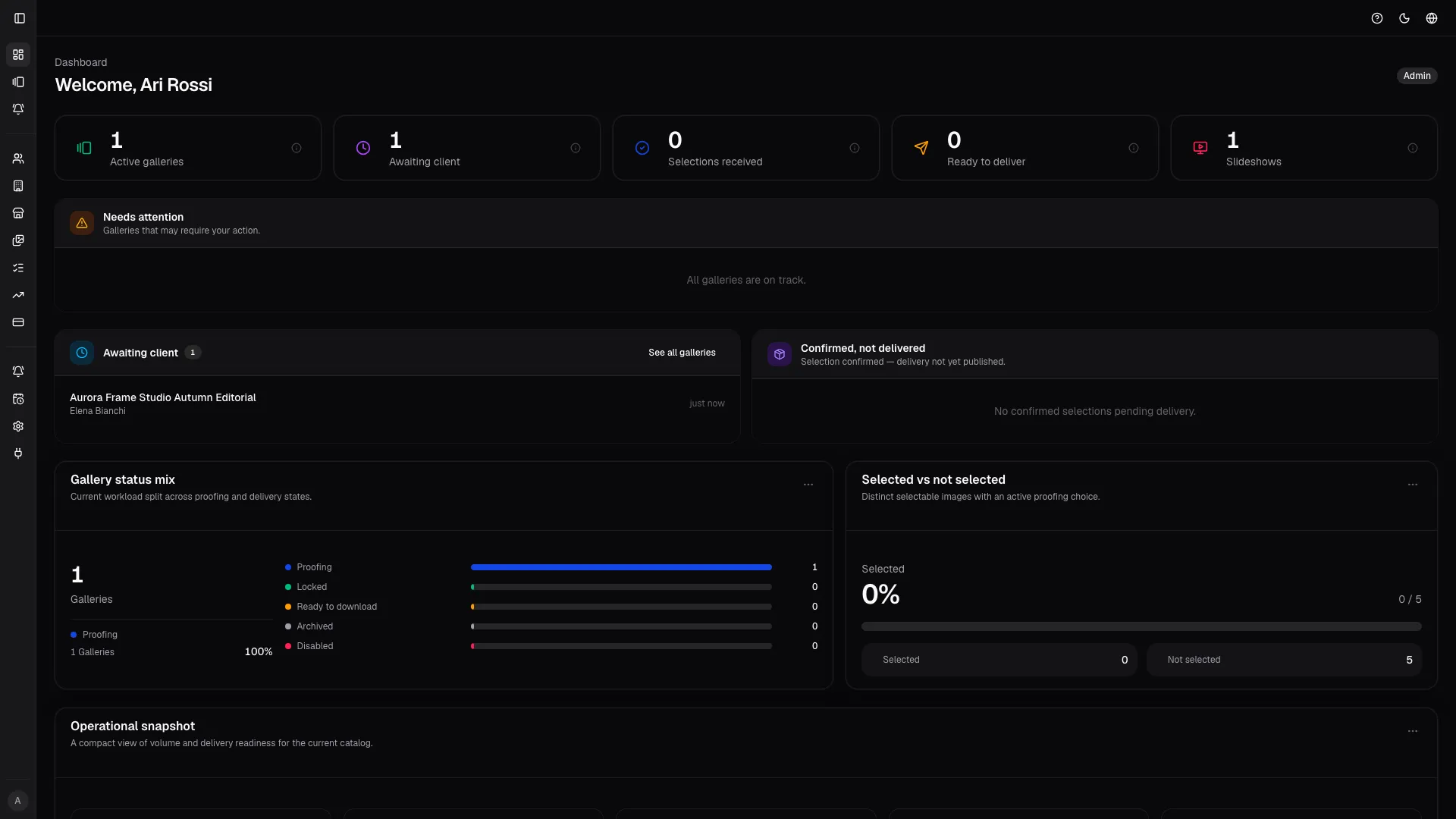
The dashboard changes by role. Owners and admins see operational metrics, active work, recent activity, and quick actions. Clients and reviewers see the galleries they need to finish, the deadlines they need to respect, and the latest context from the studio.
What the dashboard tells you
Section titled “What the dashboard tells you”- Which galleries need review, upload, delivery, or admin attention.
- What is still open for the current role.
- Whether there are operational issues such as storage pressure or task backlog.
- Where the fastest path back to the right page is located.
Role-aware behavior
Section titled “Role-aware behavior”| Role | What appears first |
|---|---|
| Owner or admin | Metrics, workload, deadlines, recent activity, and shortcuts into admin work. |
| Client or reviewer | Shared galleries, review deadlines, and actions that continue proofing. |
What to check first
Section titled “What to check first”- Open the gallery or task that needs attention right now.
- Check whether the current work is waiting on proofing, upload, delivery, or billing.
- Confirm that the role badge matches the work you are expected to do.
- Use the sidebar instead of hunting for hidden links in each page.
Why it matters
Section titled “Why it matters”The dashboard is the quickest way to return to active work after sign-in. It keeps people from starting in the wrong section and is the safest place to orient a first-time user before they touch gallery settings or delivery.