

Upload And Delivery
Uploads create media assets and gallery images. Preview processing prepares web-friendly images for proofing, while the delivery page publishes the final files when the studio is ready to hand the work off.
Upload checklist
Section titled “Upload checklist”- Upload only the files intended for review.
- Wait for processing to finish before sending the gallery.
- Check storage usage when working with large jobs.
Upload previews
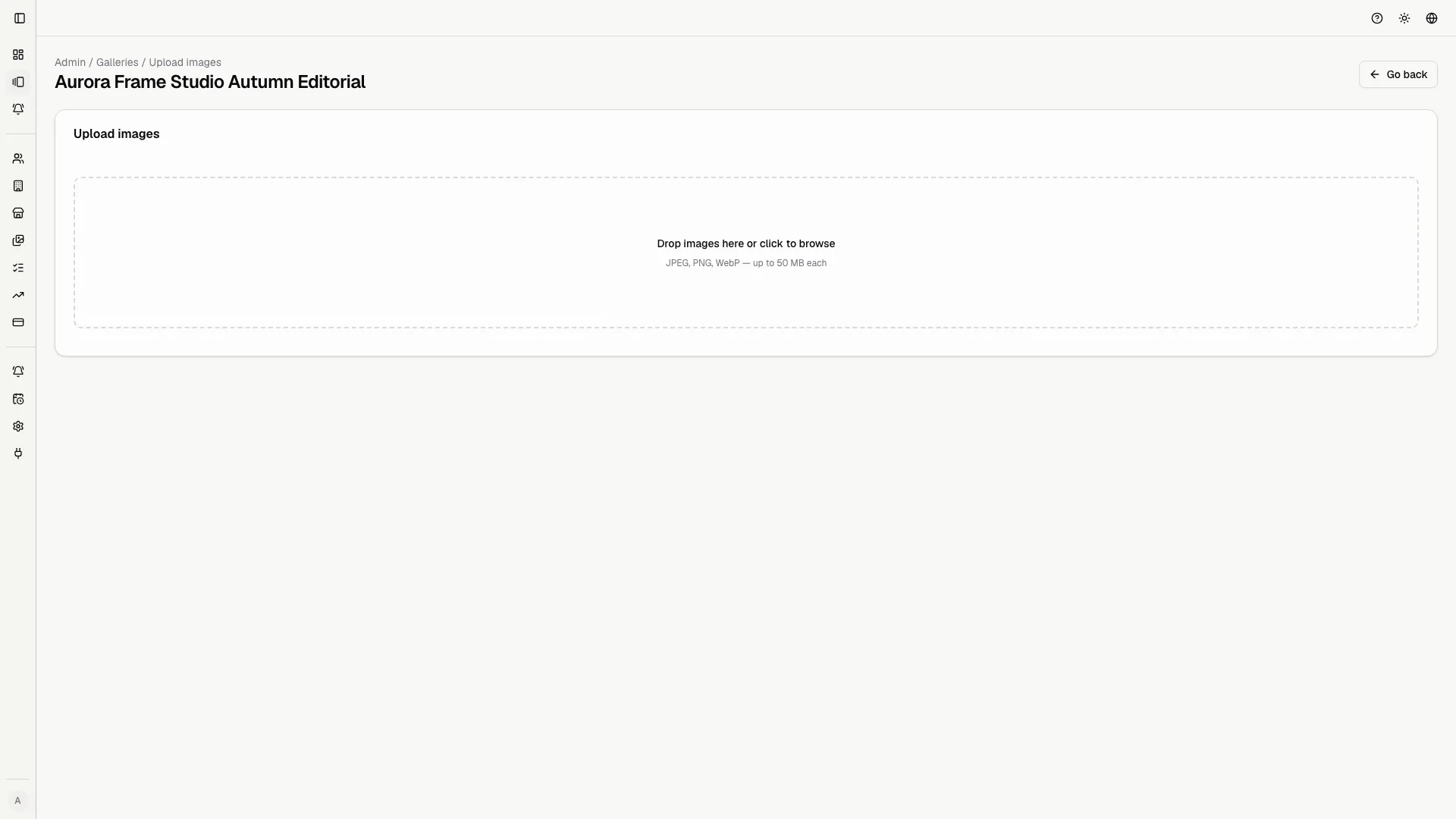
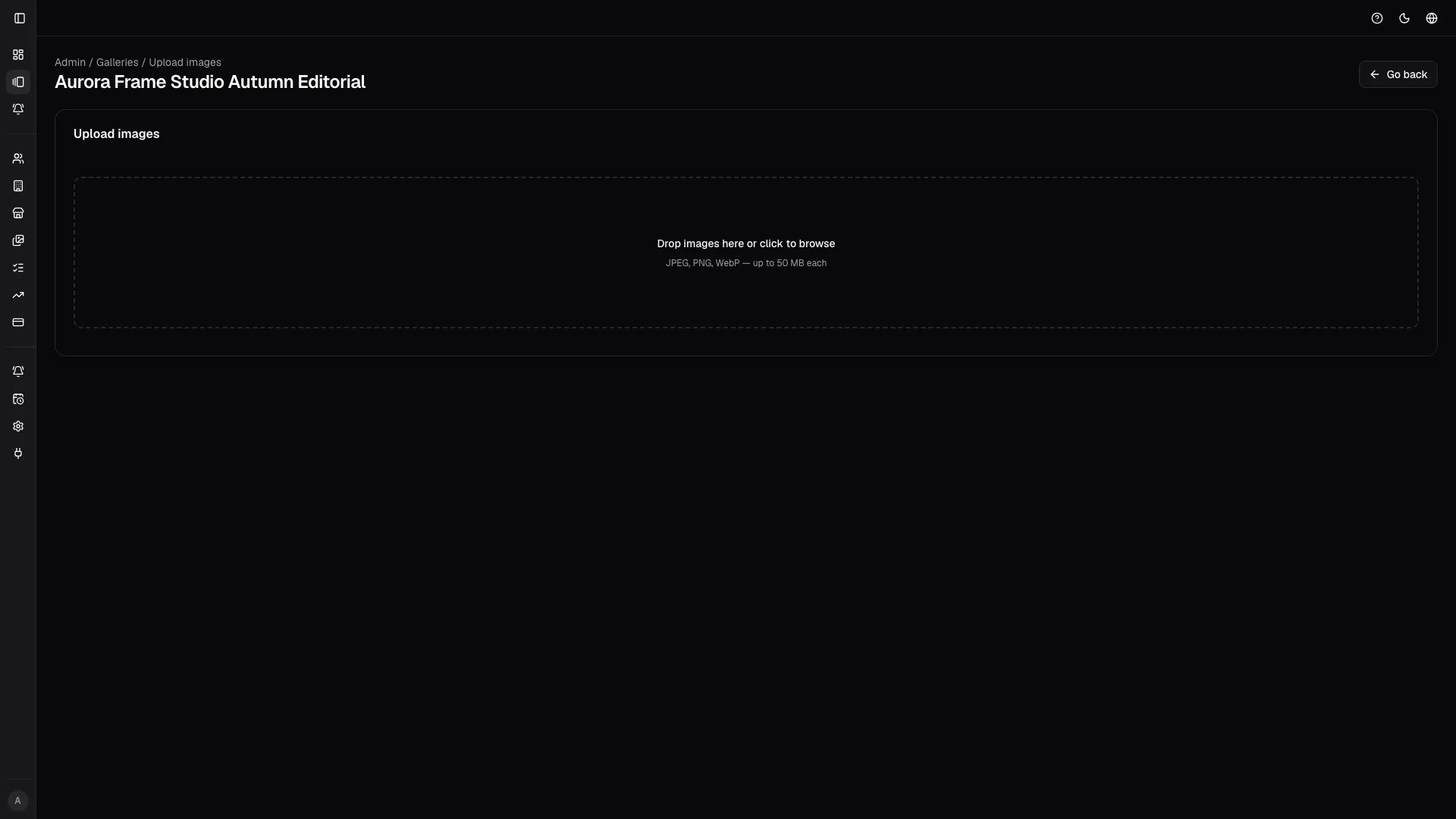
Section titled “Upload previews”Open the gallery and use Upload. Upload only images that should be seen by the client during proofing.
Before upload
Section titled “Before upload”- Check that the gallery is linked to the correct client.
- Keep the gallery disabled until the previews are ready.
- Rename or organize files if the order matters.
- Verify storage availability in billing before large jobs.
- Avoid uploading heavy final files during the preview phase.
During upload
Section titled “During upload”The uploader sends the files and creates media assets linked to the gallery. After transfer, the pipeline generates lighter previews and the data needed for display.
If you close the page, check Tasks later to see whether processing finished.
After upload
Section titled “After upload”- Open the gallery admin detail.
- Verify that the grid shows every image you expected.
- Open a few images in the lightbox.
- Check the sections and order.
- Only after those checks, switch to proofing and invite the client.
Task center
Section titled “Task center”The Tasks page shows the background jobs that prepare or refresh assets.
Job types
Section titled “Job types”| Job type | What it does | When to check it |
|---|---|---|
| Preview generation | Creates previews optimized for the grid and lightbox. | After uploads or regeneration jobs. |
| Face detection | Detects faces for filtering and review features. | When a large gallery uses face-based tools. |
| Face clustering | Groups similar faces together. | After the detection phase. |
| Vendor share rendering | Prepares assets for vendor shares, often with watermarking. | After a vendor link is created or renewed. |
Available actions
Section titled “Available actions”Depending on the job state, you can:
- filter by type;
- view active and completed jobs;
- use auto-refresh to watch progress;
- retry a failed job;
- pause or resume where supported;
- cancel a job that is no longer needed;
- read the batch groups tied to the same gallery.
If images are missing in the gallery, the first place to check is here.
Delivery
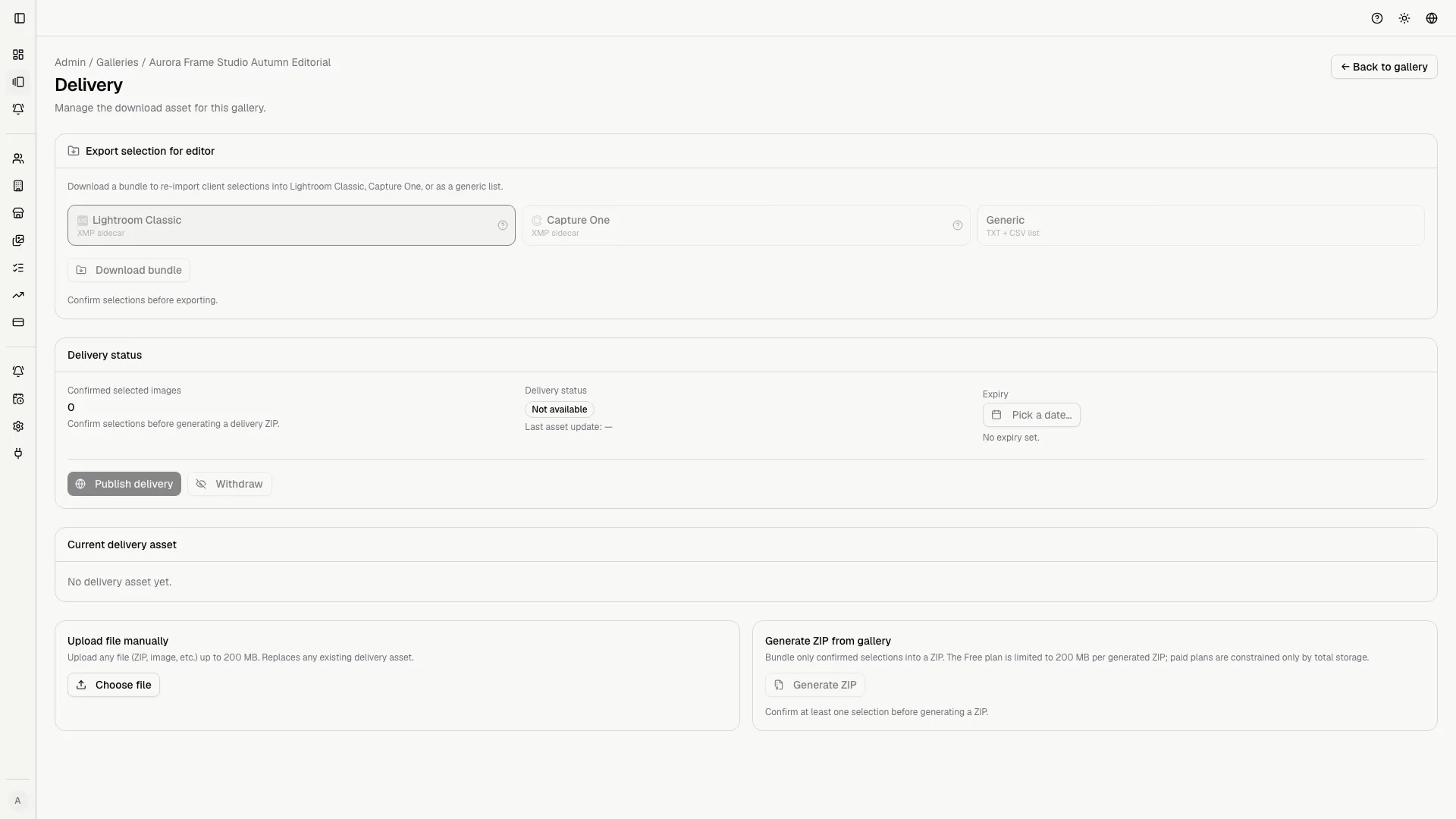
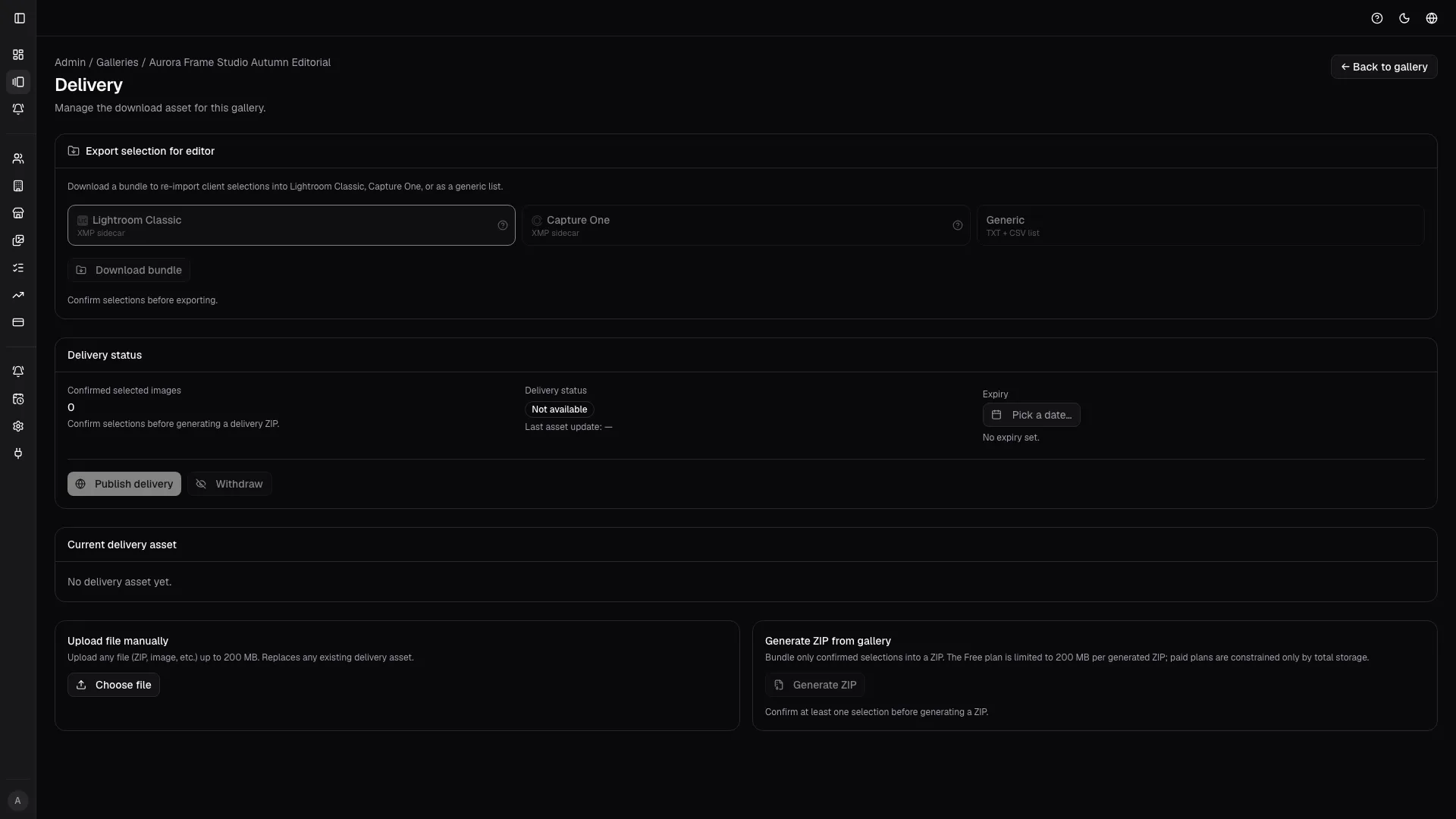
Section titled “Delivery”When proofing is complete, publish delivery assets and set the gallery to ready-to-download.
Prepare delivery
Section titled “Prepare delivery”Before publishing:
- make sure proofing is closed or locked;
- check the selected images;
- confirm that comments and requests were resolved;
- prepare the final files, ZIP, or generated asset;
- verify that the client has the right access.
Publish assets
Section titled “Publish assets”In the Delivery page you can:
- upload a final asset;
- generate delivery when the flow supports it;
- publish the download;
- replace an outdated asset;
- remove an incorrect file;
- set availability or timing when the page supports it.
Recommended states
Section titled “Recommended states”| Phase | Recommended status |
|---|---|
| Previews are being prepared | Disabled |
| The client is selecting | Proofing |
| The client is done, the team works | Locked |
| Final files are ready or almost ready | Locked for download |
| The job is complete | Archived |
Common issues
Section titled “Common issues”| Problem | What to check |
|---|---|
| Upload finished but the grid is empty | Preview generation, job errors, or file format issues. |
| The client sees old images | Browser cache or assets were not regenerated. |
| Download is not available | Delivery asset not published or gallery state is inconsistent. |
| Vendor share is not updated | Vendor-share rendering job has not completed. |
| Storage is getting high | Remove unnecessary assets or consider a larger plan. |
Delivery checklist
Section titled “Delivery checklist”- Selections are confirmed.
- Comments are resolved.
- Proofing status is closed.
- Final asset is verified.
- Download is published.
- The client has been informed.
- Gallery is archived only after final confirmation.